
Managed OpenStack
Latest
Frequently Asked Questions
Solution
How To
Internal Only
Templates
Powered By

Title
Message
Create new category
What is the title of your new category?
Edit page index title
What is the title of the page index?
Edit category
What is the new title of your category?
Edit link
What is the new title and URL of your link?
How to Boot Into Recovery Mode on an Ubuntu Cloud Image
Copy Markdown
Open in ChatGPT
Open in Claude
Problem
Accessing the recovery menu for a Ubuntu VM.
Environment
- Platform9 Managed OpenStack
- Ubuntu LTS
Procedure
- Login to the Clarity UI and switch to the tenant where the instance resides.
- Click on the Instance and then on the >\ Console Access_ on the right side of the screen.
- Once the console loads press the Send CtrlAltDel button to restart the machine.
- When the VM is booting up, click on the console once and keep the Esc key pressed.
- You will see a menu similar to this. Select Advanced Options for Ubuntu.

Screen_Shot_2021-01-04_at_2.17.06_PM.png
- Select the image and kernel version with the recovery mode from the below menu.

Screen_Shot_2021-01-04_at_2.20.55_PM.png
- Once the boot is complete it will load into the recovery menu
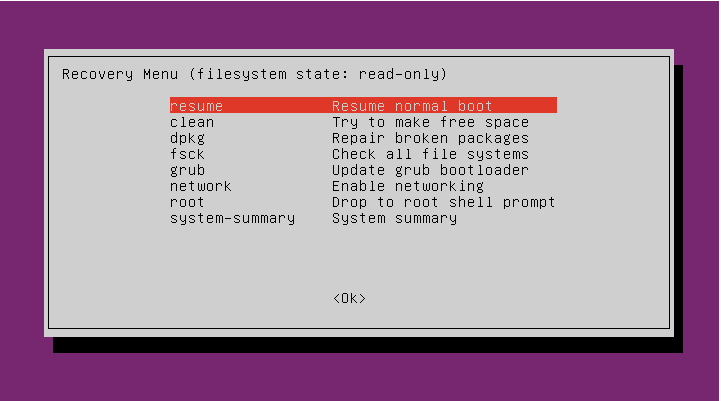
Screen_Shot_2021-01-04_at_2.22.57_PM.png
- You can use the root - Drop to root shell prompt to make changes using the root account if your image was only created for a user profile.
(!) Note - Be careful while making any changes from this menu. It is recommended you get the assistance of your System Admin before finalizing any changes.
VariableType to search · ESC to discard
GlossaryType to search · ESC to discard
InsertType to search · ESC to discard
No matches
Last updated on
Was this page helpful?
Discard Changes
Do you want to discard your current changes and overwrite with the template?
Archive Synced Block
Message
Create new Template
What is this template's title?
Delete Template
Message