

Problem
For those unfamiliar with Platform9 Managed OpenStack's Clarity UI, it can be difficult to locate the necessary credentials with which to properly authenticate as an infrastructure provider using the "Infrastructure as a Code" tool, Terraform. This article will provide the steps necessary to properly authenticate using data available in the Clarity UI.
Environment
- Platform9 Managed OpenStack - All Versions
Procedure
- Create a new file and terraform directory under your users' home directory.
- Press 'I' to enter "Insert" mode and paste the below template into the file.
When logged into the Platform9 UI, locate your username (1), tenant_name (2) and region (3) in the top right corner of the window.
Navigate to the "Access & Security" tab (1) in the left pane, click "API Access" (2) at the top of the window and copy the Keystone (Identity) endpoint (3) into your provider.tf template as the auth_url.
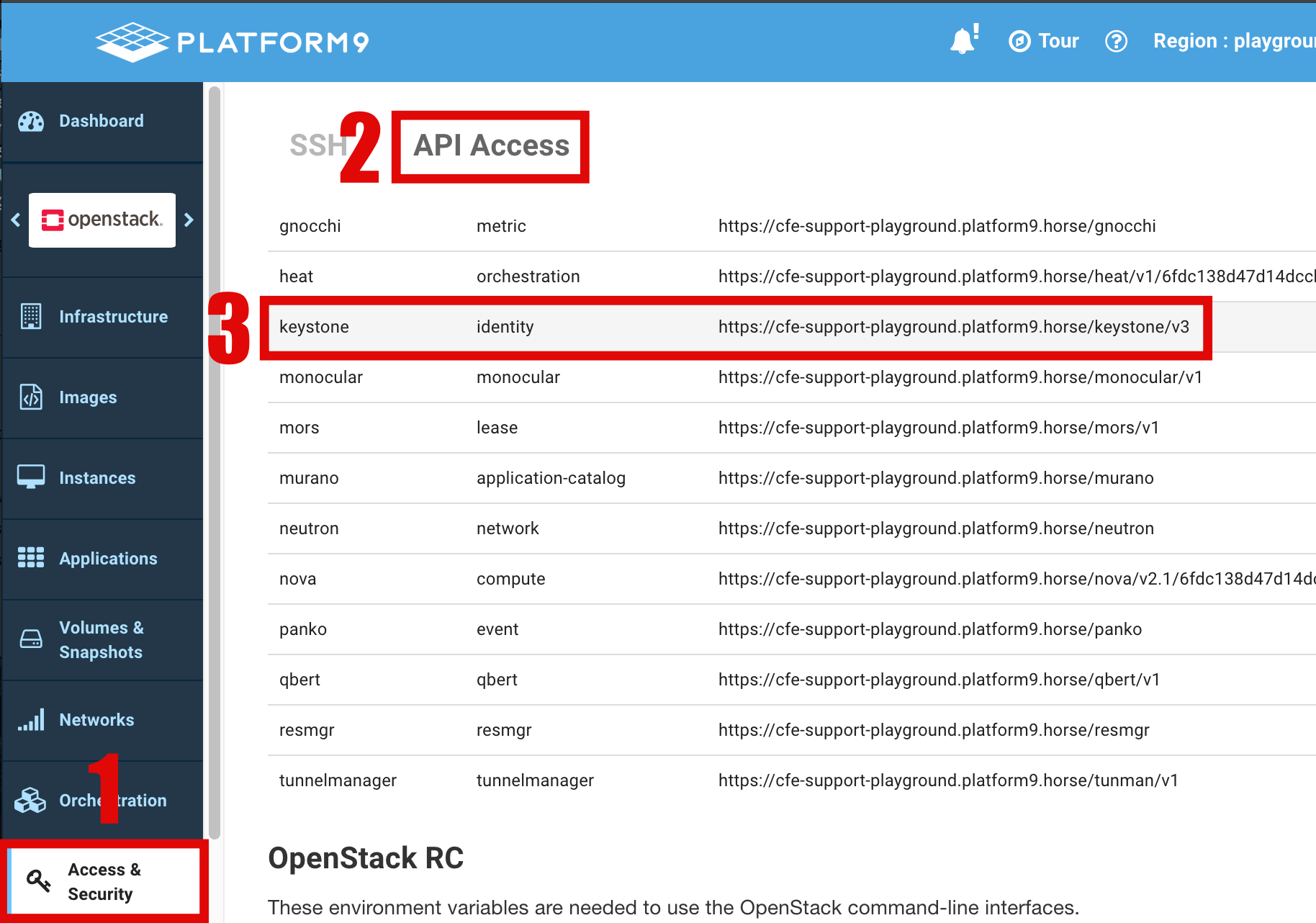
tf-keystone.png
- Insert the password you've used to login to the Platform9 UI and save the file. Press the 'ESC' key to exit "Insert" mode and type ':wq' (without quotation), then press 'Enter' to save the file.
- Ensure your present working directory contains the completed provider.tf file and issue a
terraform initcommand to complete authentication.
If the command exits with a return similar to the one above, you have successfully authenticated with Terraform.